| Tool Bars |
  
|
| Tool Bars |
|
Main Toolbar
This is displayed near the top of the main window, and sometimes on subsidiary windows, when applicable.
It is actually composed of two parts:
•The left hand part, which forms the Main Toolbar
•The right hand part, which forms the Quick Viewer Tools
These can each be shown or hidden from the toolbar context menu (see image below).
They are also moveable by clicking and dragging one of the vertical bars, in the image at the extreme left, and between 'Connect' and 'Reply'.
Click a HotSpot on the image below for further information.

Some buttons may be disabled where their function is not applicable to the current situation.
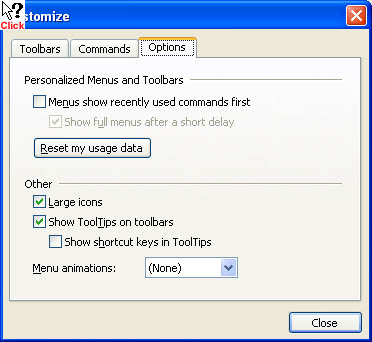
The size of the buttons can be changed from the Customise menu, as can many other aspects.
NOTE that the toolbars are stored locally and will not be available if the same MailCOPA User logs in from another computer, nor if a different Windows User is used on the local machine (they are stored in HKEY_CURRENT_USER).
Customising the Toolbar
A high degree of customisation can be achieved to suit your own way of working.
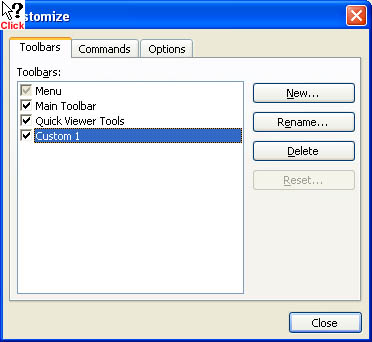
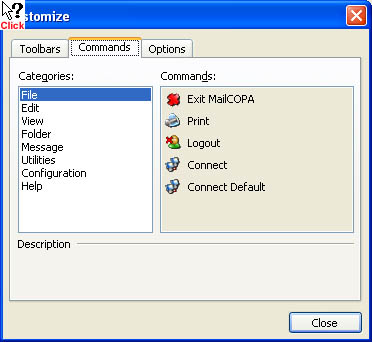
Right-click on the toolbar and select Customise from the context menu, or select View  Toolbars Customise
Custom Toolbars
It is possible to add your own toolbars, and add various buttons to them.
Once created, the toolbar will be free-floating, but can be dragged anywhere you wish, including being added to the mail toolbar by dragging and dropping onto it.
The custom toolbar's context menu allows the temporary addition or removal of buttons.
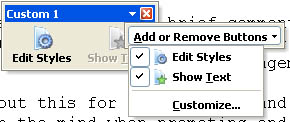
It is possible to add or remove buttons to/from a custom toolbar. Once the form below is open, you can:
•Drag buttons off the toolbar
•Drag buttons around within the toolbar
•Add commands from any of the menus onto the toolbar.
Options
A number of options are available for the display of the toolbar, as shown below: