| Main Window |
  
|
| Main Window |
|
A range of viewing possibilities are available, all managed in this Main Window.
The Main Window presents a range of viewing possibilities for Folders, Message Lists, Message Contents etc. There are two main layouts – Horizontal (Normal) and Vertical. Horizontal is the default. Layouts can be switched:
View  Windows Arrange Normally
View Windows Arrange Vertically
NOTE that the window configuration is stored locally and will not be available if the same MailCOPA User logs in from another computer, nor if a different Windows User is used on the local machine (it is stored in the Registry).
The following panes are available in the Main Window (they may be added or removed from View Windows):
•Folders List
•Messages List
•Quick Viewer
•Connect Log
•Mail Received
This is how MailCOPA will appear when first installed. The window can be reset to this layout from View Windows Restore Default Layout
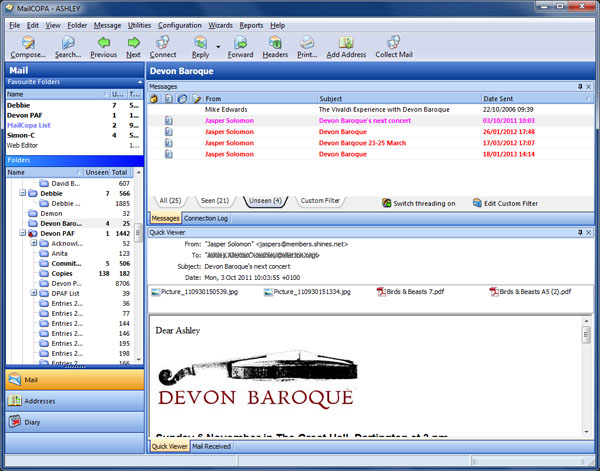
The Messages Window and Connection Log are tabbed together, and the Quick Viewer and Mail Received Window are also tabbed together. Clicking on a windows tab brings it to the front.
It is possible to move these around by dragging the tab of the window in question - eg it is possible to move the Mail Received Window so that it is tabbed above its default position with the Messages Window and Connection Log
If things get into a mess, DON'T PANIC! - you can reset the default view from View Windows Restore Default Layout and start again.
Assuming you have not set the option to disable docking in the General Preferences, then the following is possible:
Switches to Docking Mode - all of the windows on this tab will slide out of view, just their tabs being visible. Clicking on one of these tabs causes that window to slide back into place so it can be viewed. When the mouse pointer is moved off the window, it will slide back out of view again. |
|
|
Switches from Docking to Normal Mode. The tabbed sets of windows will always be visible. |
|
Closes this window. It can be reopened from View |
The Main Window can also be arranged in an alternative layout:
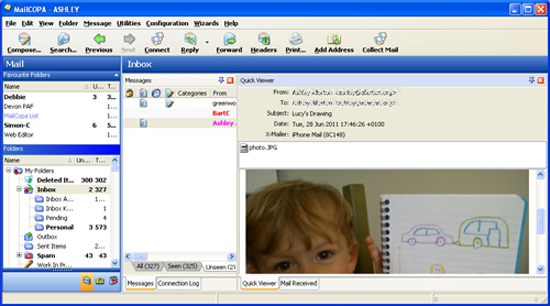
You can switch between this and the Normal view:
View Windows Arrange Vertically
View Windows Arrange Normally


