| Folders List |
  
|
| Folders List |
|
This can be displayed in various ways as explained in the page on the Main Window
In whatever way it is displayed, its functioning is the same.
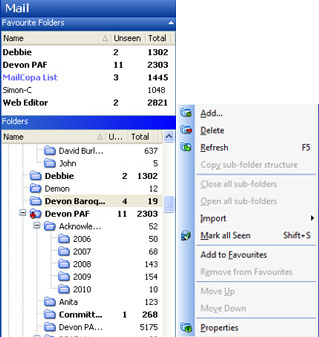
Favourite folders may be added to the pane at the top (or bottom, see here) from the context menu (right-click on the folder). The original folder remains in the main list, this is just a copy. Once here, they may be used in exactly the same way as the folder in the main list, including amending its properties. Shared folders (belonging to other MailCOPA users) can now become favourites too.
The order of the folders will initially be alphabetical, but clicking on the header will order the list by that column.
Right-clicking on a folder opens a context menu, and this is identical to the Folder menu on the main menu.
The Message List will display a list of the messages in the selected folder.
The background colours used for the selection in the Active and Inactive panes or windows can be set in Windows Control Panel  Display Appearance
The colour of the text of the folder name can be set from Folder Properties.
The first six folders (Deleted, Inbox, Outbox, Sent Items, Spam and Work in Progress) are System Folders, and cannot be deleted, but may be renamed.
To create your first new folder, right-click on 'My Folders' and select 'Add' from the context menu. You will be taken to a Folders Properties window for the new folder, where you can name it and make any configuration settings you wish.
Note that all folders can have sub-folders, and sub-folders can have sub-folders etc. Right clicking on any folder opens a context menu which includes the option to add a sub-folder.
Normally the system folders will be at the top of the list, with any others below, in the order they were added. It is possible to sort all of the top-order folders alphabetically - go to Configure Preferences General. By default, the system folder names start with a space, which will place them at the top of an alphabetical list.
A View Folder is a special type of folder that holds no messages of its own, but only messages (or rather links to messages, which are not duplicated) in other folders.
To create a View Folder, right-click any folder in the tree (including the root My Folders) and select Add View Folder from the context menu. Name it and select the folders whose messages you wish to have displayed in the View Folder.
When replying, the Properties of the folder which holds the original message will be followed.
New messages' copies will be saved in the Sent Items folder - there is no way of varying this.
Moving folders around
CAUTION - it is possible to inadvertently drag folders around if you are working quickly. It is a good idea to set the option in Configure Preferences General to disable folder dragging. More details here.
If Configure Set Preferences General Sort Folders Tree is set, then the root folders (those which are not sub-folders) will be sorted alphabetically, and this order cannot be changed. If a folder is dragged with the mouse, it will become a child of the folder it is dropped on.
If Configure Set Preferences General Sort Folders Tree is NOT set then simply dragging a folder with the mouse will only allow it to become a child of the folder it is dropped on.
Dragging with the mouse and shift allows a folder only to be dragged amongst its siblings (it cannot be move upwards in the folders tree). When dropped the folder will position itself above folder it is dropped on. This thus allows the order of the folders to be non-alphabetical.
If the above setting (Configure Preferences General Sort Folders Tree) is not checked, then you can move folders (including sub-folders) to wherever you want them by dragging them. If the ALT key pressed, then movement is restricted to the current parent folder and its children. Without the ALT key held, folders may be dragged anywhere.
If you wish to change this arrangement, you can rename the system folders (or any others) by going to Folders Properties.
Folders in BOLD have Unseen messages in them, and there is a count of Unseen/Total messages against each folder - note that one or both of these counts can be configured to be shown or hidden in Configure Preferences General.
Folders which themselves have no Unseen messages in them, but one or more of whose sub-folders do, will have a red cross on their icon thus: 